Cull before importing the keepers into Lightroom Classic
Keep Lightroom for the editing work you value. First catalogue the shoot in FastLoupe, review it manually and check your selection before importing the keepers into Classic. FastLoupe does its own preparation; this is not a no-import shortcut.
On Mac, download free and start the optional trial in the app. See what stays free and what the unlock buys.
New shoot: prepare, review, hand off
Catalogue the folder in place
Use a backed-up folder or small test copy. FastLoupe builds a separate local index and preview cache without moving the originals. Initial preparation reads files and takes time.
Rate and select
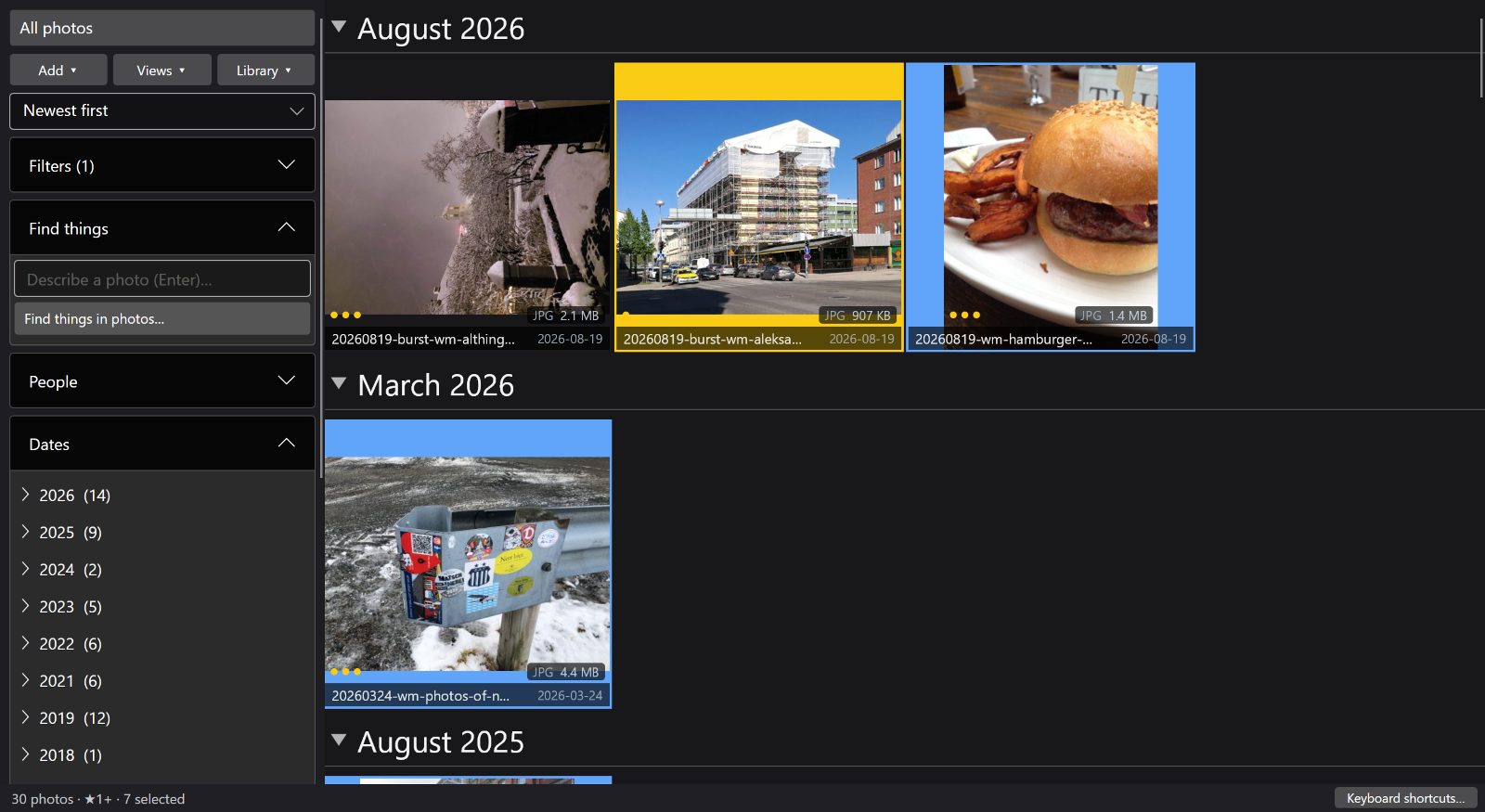
Review photographs, compare alternatives and assign ratings or flags. Filter the keeper set. These decisions initially live in FastLoupe’s catalogue.
Write only the handoff you choose
Explicitly write supported XMP metadata when you want it next to the files. Check the selected original files and sidecars before importing them into Lightroom. An export preset can create delivery copies; do not confuse those with unchanged RAW originals.
What XMP can and cannot promise
FastLoupe writes supported star ratings, colour-label names, keywords and selected rights fields. XMP writing is explicit and requires the trial or unlock on Mac. Adobe’s metadata handling depends on format and settings; test that Lightroom reads the fields you need.
Match colour-label names in the receiving application. Do not assume pick flags, custom labels or every edit will round-trip. A selection in FastLoupe is not itself a Lightroom import filter, and this is not a live link between the two catalogues.
Before using this on a paid job, try a small copy of a shoot and check the receiving editor. Confirm the stars, colour-label names and file selection yourself. Keep your originals and an independent backup until the handoff is verified.
Existing Lightroom library: a different entry path
Choose the Lightroom catalogue option to read a .lrcat once and seed a separate FastLoupe catalogue. Supported ratings, flags, keywords and collections come across; FastLoupe never writes to the source .lrcat. This does not transfer an editable Develop history or keep two catalogues synchronised.
Lightroom may need closing while FastLoupe reads the catalogue. Follow the lock and preview prompts; a safe-copy option is offered only when the app’s checks allow it. Existing Lightroom previews can be reused, but missing previews mean more preparation.
Know what the speed claim measures
FastLoupe builds its own local catalogue and preview cache. Initial cataloguing takes time; later grid browsing uses those prepared previews. Full-resolution review and export can read the originals. Cached-scroll measurements do not tell you how long your cull will take.
This workflow does not promise a particular saving in Lightroom import time. Measure setup, selection and the receiving import on your own test set. If the extra catalogue adds no value to your process, continue with the tools you already use.
Keep your finishing workflow
Keep Lightroom Classic for its Develop tools and Photoshop or another editor for retouching. FastLoupe is a local browsing and selection tool alongside them, not a subscription-cancellation promise.
FastLoupe uploads no photos or catalogue data to Oddbrd and requires no FastLoupe account. Optional backup sends copies only to storage you configure. Store accounts and checkout are managed by Microsoft or Apple. See the privacy policy.
Sources and review date
Written by Oddbrd Oy, the developer of FastLoupe. Reviewed . Compare a representative shoot before changing your workflow; this page is not an independent benchmark.
Try the workflow with a small test set
Windows offers a 30-day trial. On Mac, browsing, search, comparison and rating stay free; start the optional 30-day trial for file-changing tools, then buy the permanent unlock if needed. Windows and Mac purchases are separate. Optional Azure backup and storage are separate.
On Mac, download free and start the optional trial in the app. See what stays free and what the unlock buys.
Worldwide launch offer through 11 October 2026. Finland reference prices: Windows app or Mac permanent unlock €14.99; €24.99 from 12 October. Mac download and browsing tier are free. Local Store prices and availability apply.
Starting a trial does not reserve the launch price. Store account and checkout requirements apply.